RSA Authenticator (SecurID)
RSA SecurityCommunication
3.31.18K Reviews
- Version
- 4.7.1.1
- Installs
- 10.00M
- Age Rating
- Everyone
Screenshots
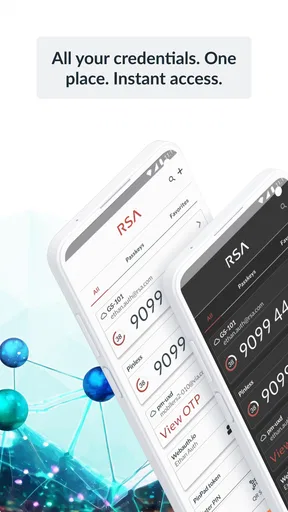
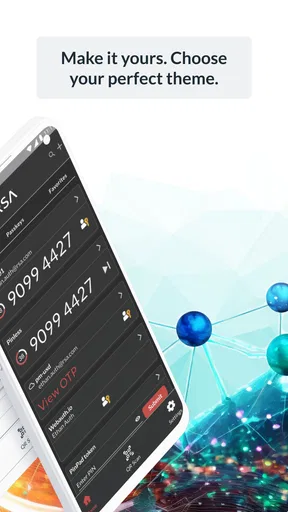
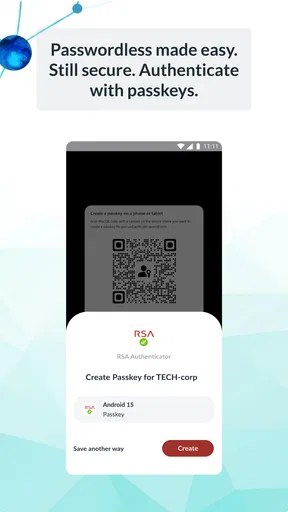
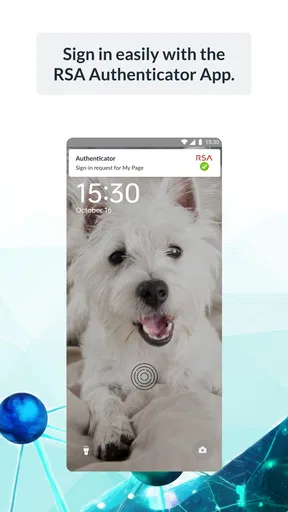
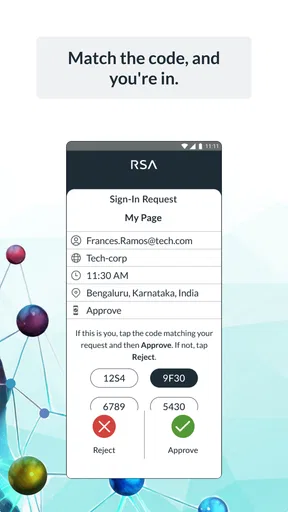
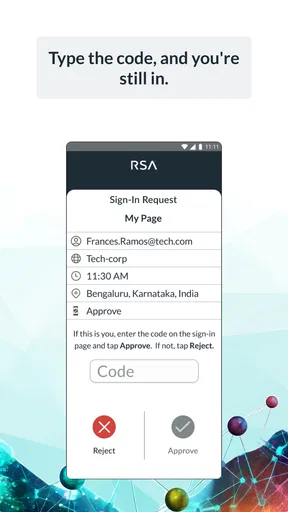
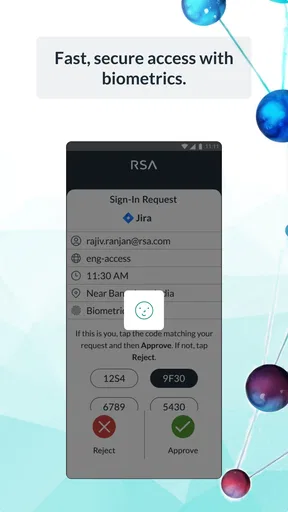
Our Review of RSA Authenticator (SecurID)
 Analysis by Appyee
When a login asks for a second proof of identity, I want the process to be quick, understandable, and dependable rather than another small obstacle in my day. RSA Authenticator, also known as SecurID, is a communication app from RSA Security built around that job. It supports passkeys, biometrics, one-time passwords, and other authentication methods, so its value is less about entertainment or broad communication and more about helping me reach protected work or personal services.
After spending time with it, I see a focused tool with a clear purpose. It can be especially useful when an organization already relies on RSA authentication, because the app fits into that existing sign-in arrangement instead of asking users to manage an unrelated solution. At the same time, its usefulness depends heavily on how an account has been configured. Someone looking for a general-purpose authenticator with a flexible, self-directed setup may find the experience less welcoming than expected.
How RSA Authenticator feels to use across different situations
I look at RSA Authenticator across more than the quick first sign-in: its real value shows up when routines change, a preferred method is inconvenient, or access needs to be restored. Those situations make it worth planning a fallback while everything is working, rather than treating recovery as an afterthought. That preparation leads naturally to the question of how much ongoing attention the app asks of me.
Readability and navigation during a normal sign-in
The strongest part of the experience is its narrow focus. I am not sorting through messages, dashboards, news, or promotional screens before reaching an authentication action. That matters when I am already waiting at a login page and simply need to approve a request, use a passkey, or retrieve a one-time password. A focused interface reduces the amount of visual searching involved, particularly for people who become tired or distracted by crowded apps.
The app’s store summary points to several authentication routes, and that variety is important for inclusive use. A person who prefers a biometric prompt may not want to read or type a temporary code every time. Someone who cannot use a fingerprint reader reliably may prefer another available method. Passkeys can also reduce the need to remember or manually enter information, although the exact choices I see depend on the service and account setup rather than on the app alone.
In my experience, the main navigation question is not whether the app contains too many sections; it is whether I immediately understand what action is expected. Authentication tools should make the next step obvious. When a request is waiting, a clear approval flow is more helpful than decorative design. If I am using an OTP, the code needs to be easy to locate and copy mentally without confusion. If I am responding to a prompt, I need confidence that I am approving the correct sign-in.
That last point is worth taking seriously. A simple screen is not automatically an accessible screen. People with low vision may need to enlarge text through their device settings, and people with reading difficulties may benefit from taking extra time to check the wording before approving. I would not treat speed as the only measure of success. A slightly slower confirmation that makes the account, request, and next action understandable is safer than an effortless tap made without enough context.
Biometrics, passkeys, and different ways to confirm identity
The choice between biometrics, passkeys, and OTP authentication is more than a convenience preference. It can change who is able to complete a sign-in independently. A user with limited dexterity may find typing a temporary code frustrating, while another user may not be able to use a biometric sensor consistently because of a device, hand, or environmental issue. Having more than one route gives the account owner a better chance of finding a workable routine.
I particularly appreciate the idea of keeping a fallback method available. If a biometric check fails because my hands are wet, the phone is positioned awkwardly, or the sensor does not recognize me, a code-based option can prevent a minor problem from becoming a locked-out account. Conversely, if typing is difficult or slow, biometric confirmation can remove repeated keyboard work. The practical lesson is to test the alternatives before an urgent login, not when I am already outside an office or facing a deadline.
Passkeys can be helpful for people who struggle with passwords and repeated code entry, but they do not eliminate every access issue. The phone still has to be available, the relevant sign-in must support the method, and the user must be comfortable following the device’s own confirmation steps. I would explain this to a less technical family member as follows: the app can make identity checks easier, but it cannot make every website or workplace login behave identically.
There is also a safety trade-off. The fastest method is not always the best one in a shared or public setting. A biometric prompt may be convenient, but a user may prefer a code if they do not want to use a sensor in front of other people. On the other hand, displaying or reading a code aloud can expose it. The best option changes with the surroundings, the person’s abilities, and the sensitivity of the account.
A realistic everyday scenario: signing in away from a desk
Imagine I am traveling and need to access a work service from my phone while standing in a noisy station. I may have one hand occupied, poor lighting, and only a short window before boarding. In that situation, a biometric or passkey flow could be easier than opening a separate password manager, finding a stored password, and typing a temporary code. If the sensor fails, I would want the OTP route to remain practical rather than requiring me to repeat the entire setup.
Now change the situation: I am in a quiet room but my phone battery is nearly empty. The app cannot compensate for a device that is about to shut down. This is why I would avoid making it my only plan for important access. I would learn the organization’s recovery process in advance and keep the phone charged before travel. That is not a criticism unique to RSA Authenticator, but it is an important reality for anyone depending on a phone-based second factor.
Another useful habit is to pause before approving an unexpected request. Accessibility and security overlap here. A user who is rushing, has limited visual information, or relies on a quick tap may be more vulnerable to approving something they did not initiate. I prefer to treat each prompt as a deliberate decision: check the account or service shown, confirm that I just started the login, and only then approve. If the wording is hard to read, enlarging the screen or moving to better lighting is worthwhile.
Situational access when the phone, network, or body is not cooperating
Authentication apps are often judged in ideal conditions, but real access happens during interruptions. I may be wearing gloves, recovering from an injury, using the phone one-handed, or dealing with glare outdoors. The availability of several authentication approaches gives RSA Authenticator a useful degree of flexibility, but the experience still depends on the device’s operating system, its input methods, and the service requesting authentication.
For motor access, the important question is how much precise tapping and typing a chosen method demands. A biometric or passkey confirmation may require fewer manual actions than entering a temporary code. However, a user who has involuntary movements or difficulty positioning a finger may prefer a method with a more forgiving input process. I would try every permitted option during setup and note which one requires the least repeated effort.
For sensory access, the app should be considered together with the phone rather than in isolation. Screen magnification, larger system text, contrast preferences, spoken feedback, and other device-level tools may influence whether the authentication step is comfortable. I would not promise that every device setting will produce the same result, but I would test the complete sign-in journey: opening the app, identifying the request, reading or hearing the relevant information, and returning to the original service.
For users who are deaf or hard of hearing, a visual authentication flow may be preferable to anything that depends on an audible cue. For users with visual impairments, a code that can be spoken by the device may be more useful than a code presented only visually, provided the surrounding workflow works with their assistive technology. The key is not to assume that one “easy” method suits everyone. RSA Authenticator’s multiple options are most valuable when the account administrator has enabled choices rather than forcing a single route.
Where the experience can still create barriers
The largest limitation is the relationship between the app and the organization controlling access. RSA Authenticator is not a universal key that I can freely configure for every service in the same way. If a workplace or service requires a particular enrollment process, token arrangement, or authentication method, the user may have little control over the most important part of the experience. That can be difficult for anyone who needs an alternative because of vision, hearing, dexterity, or temporary circumstances.
Enrollment is especially important. A person may manage everyday approvals comfortably but struggle when first pairing the account, scanning information, entering a code, or following instructions from an administrator. I would ask for assistance before the old authentication method is removed, and I would make sure the chosen fallback has actually been tested. A support team that understands accessibility needs can make the difference between a smooth transition and a complete loss of access.
There is also a cognitive burden that is easy to overlook. Even with a clean interface, users may need to remember which method is active, understand why a prompt appeared, and know what to do after a failed attempt. Switching between a passkey, biometric check, and OTP can be empowering, but it can also be confusing if the service presents different instructions each time. I would keep the routine as consistent as possible and write down non-sensitive recovery guidance in an accessible format.
People who share devices or depend on a caregiver should think carefully about privacy and independence. An authentication app is handling access to accounts, so another person helping with setup may gain visibility into sensitive steps. The right arrangement depends on the user’s needs and the organization’s rules. I would avoid casually handing over the phone or codes, and I would ask the account administrator about an approved support process instead.
Device changes are another moment when barriers can appear. Moving to a new phone, losing the current phone, or resetting the device can affect the ability to authenticate. I would not wait until a replacement is necessary to learn what recovery involves. The practical preparation is simple: identify the official support contact, understand which backup method is allowed, and confirm that the recovery instructions can be read and followed using the user’s preferred accessibility settings.
Who will benefit most, and who may prefer another approach
I think RSA Authenticator is a strong fit for people whose employer or service already uses RSA Security authentication and who want several ways to complete a second-factor check. It is also suitable for users who value a dedicated authentication tool rather than storing every credential in a broader password-management app. The fact that it is free and rated for Everyone makes it approachable from a cost and age-label perspective, although the surrounding account setup still determines whether it is practical for a particular person.
I would be more cautious about recommending it to someone who wants to choose any provider independently, import a large collection of unrelated accounts, or manage authentication without an administrator. A general authenticator may be a better fit when the user needs broad compatibility and a self-managed workflow. A password manager may be preferable for someone who wants passwords, passkeys, and codes organized in one place. Those alternatives can also introduce their own accessibility and recovery questions, so the right choice depends on the services being protected and the user’s comfort with the setup.
The public response suggests a mixed experience: the app has an average rating of 3.3 from around 18 thousand ratings, with roughly 1.2 thousand written reviews. I read that as a reminder that authentication apps are judged under pressure. A small enrollment problem or failed prompt can feel much more serious when it blocks work, education, or essential services. I would not choose it based on the rating alone; I would first confirm that the service I need supports it and that an accessible backup method is available.
RSA Authenticator has been available since May 24, 2011, and its reach is substantial, with over 10 million installs. The current release is version 4.7.1.1, and it requires operating system version 10 or later. Those details matter when recommending it to someone using an older phone or a device managed by an organization. Before planning a switch, I would check the phone’s system version and ask the administrator which authentication options are supported on that specific device.
My inclusive verdict after using it
I see RSA Authenticator as a focused security companion rather than a complete answer to every access need. Its best quality is the range of authentication choices: passkeys, biometrics, OTP, and other methods can let different users choose a route that matches their abilities and circumstances. That flexibility is meaningful when a person cannot reliably use one single method every time.
Its weaker side is that accessibility is shaped by the entire authentication chain. The app, the phone, the requesting service, and the organization’s enrollment and recovery procedures all matter. A polished approval screen cannot fix an inaccessible setup process, an unavailable fallback, or instructions that assume every user can type, see, hear, and tap in the same way.
My recommendation is therefore practical: use it when RSA Security is already part of the service you need, test the available methods before relying on them, and arrange recovery support while you still have access. Keep an eye on the context too. A biometric prompt may be ideal in one moment, while an OTP or passkey may be better in another. The most inclusive choice is the authentication method that remains understandable and usable when real-life conditions are less than perfect.
For the right account environment, this free communication app can remove repeated password work and make secure sign-ins less tiring. For someone seeking a universal, independently managed authenticator, another tool may offer a better match. I would recommend RSA Authenticator to users who have confirmed that compatibility and support arrangement, especially those who benefit from having more than one way to prove who they are.
Verdict
Strengths of RSA Authenticator (SecurID)
- Generates secure one-time codes for protected account access.
- Supports push authentication for quicker sign-ins where enabled.
- Works with RSA SecurID tokens managed by participating organizations.
- Adds an extra security layer beyond usernames and passwords.
- Designed for business and enterprise authentication environments.
Limitations of RSA Authenticator (SecurID)
- Requires an RSA-protected account and cannot be used independently.
- Some features depend on your organization’s authentication server setup.
- Device changes may require reactivation by an administrator.
- Push approvals depend on internet access and notification delivery.
- The interface may feel technical for users unfamiliar with MFA tools.
Similar Picks in This Category
View All
Google Messages
Google LLC4.6

Gmail
Google LLC4.1

Google Meet
Google LLC4.4

Google Chrome
Google LLC4.1

WhatsApp Messenger
WhatsApp LLC4.6

Carrier Services
Google LLC4.2
Frequently Asked Questions
What is RSA Authenticator (SecurID) used for?
RSA Authenticator (SecurID) is a security app used to verify your identity when signing in to protected business, school, government, or enterprise services. It generates time-based one-time passcodes and may also support push notifications or biometric confirmation, depending on your organization’s configuration. It is not a general password manager and normally works only with an account enrolled through an RSA SecurID-enabled service.
How do I activate RSA Authenticator (SecurID) after installing it?
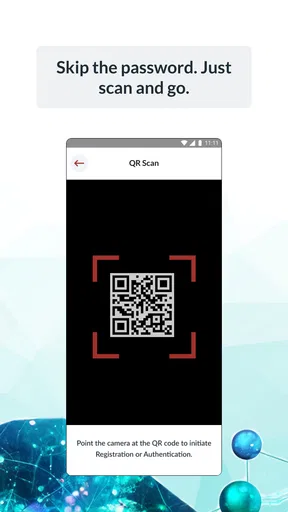
After installation, you generally need an activation link, QR code, or activation code supplied by your organization’s IT administrator or identity-management portal. Open the app and follow the enrollment instructions, then create or confirm the required app security settings. The exact process can vary between organizations, so downloading the app alone usually is not enough to make it functional.
Does RSA Authenticator (SecurID) require an internet connection?
The requirement depends on the authentication method enabled by your organization. Time-based passcodes can often be generated without mobile data or Wi-Fi once the app has been properly activated, although your device’s clock must remain accurate. Push approvals, account enrollment, updates, and some cloud-based features generally require an internet connection. If offline access matters, confirm the policy with your administrator.
What happens if I lose my phone or get a new device?
If your phone is lost, stolen, reset, or replaced, you should contact your organization’s IT or help desk as soon as possible so the old authenticator registration can be disabled and a new one issued. Do not assume that restoring a phone backup will transfer the credential correctly. Keep alternative recovery details available, because you may need another approved verification method to regain access.
Is RSA Authenticator (SecurID) free and is it safe to use?
The mobile app is typically available to download without a separate consumer subscription, but access depends on an organization using RSA SecurID authentication and providing the necessary enrollment credentials. It is designed to improve account security by generating protected verification codes or approving sign-in requests. You should install it only from the official app store and never share activation codes, passcodes, or approval requests with anyone.
